Device Details
Overview
| Name | Version: | Conduit - AI MIDI Generator 1.0 |
| Author: | jordanaftermidnight |
| Device Type: | MIDI Effect |
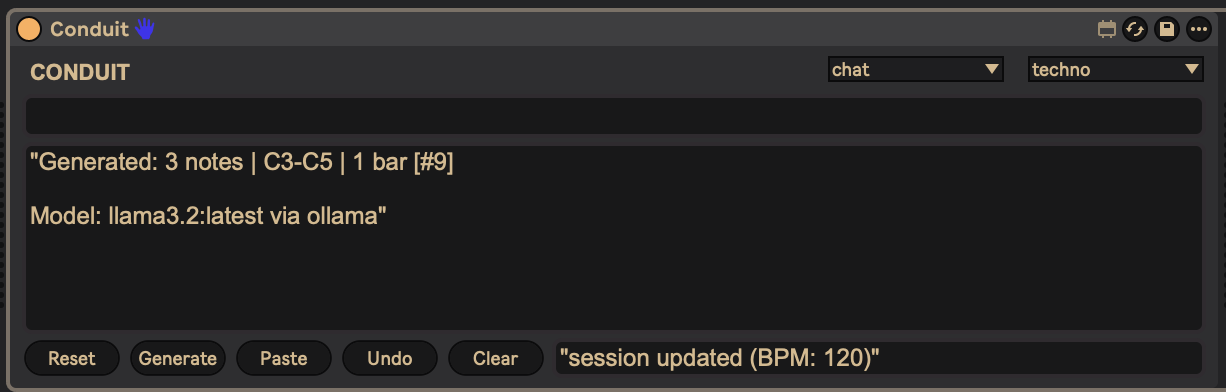
| Description: | Conduit connects Ableton Live to a local AI running on your own machine. Type something like "4-bar techno kick pattern" or "8-note ambient melody in C minor" and it writes MIDI clips directly into your selected track. No cloud. No API keys. No subscriptions. Everything runs locally and privately through Ollama. TWO MODES: - Chat — Talk to the AI about your session. It sees your BPM, tracks, time signature, and more. - Generate — Describe what you want, get MIDI clips written straight into your session. FEATURES: - 8 genre modules (techno, house, dnb, dubstep, hip-hop, ambient, IDM, trance) - Session-aware — reads your BPM, time sig, track names, and selected track - Pattern clipboard — auto-saves generated patterns, paste to re-use them - Undo — revert the last generated clip - 100% local and private — uses Ollama with llama3.2 (3B), no cloud needed REQUIREMENTS: - macOS or Windows - Ableton Live 11/12 with Max for Live - Ollama (free, open source — https://ollama.com) - Python 3.9+ - ~4GB free RAM ---------- SETUP — macOS ---------- 1. Install Ollama — download from https://ollama.com, drag to Applications 2. Open Terminal, run: ollama pull llama3.2 3. Download Conduit from https://github.com/jordanaftermidnight/conduit 4. Open Terminal in the conduit folder, run: ./package-device.sh --install 5. Double-click "Start Conduit.command" to launch the AI server 6. In Ableton: Browser > User Library > MIDI Effects > Conduit — drag onto a MIDI track 7. Wait 5 seconds for the device to connect, then type a prompt and press Enter ---------- SETUP — Windows ---------- 1. Install Ollama — download the Windows installer from https://ollama.com/download 2. Open Command Prompt or PowerShell, run: ollama pull llama3.2 3. Install Python 3.9+ from https://python.org/downloads (check "Add to PATH" during install) 4. Download Conduit from https://github.com/jordanaftermidnight/conduit (Code > Download ZIP, or git clone) 5. Install Python dependencies — open Command Prompt, navigate to the conduit\server folder, run: pip install -r requirements.txt 6. Copy the device files: - Copy conduit\dist\Conduit\Conduit.amxd and conduit\m4l\conduit-bridge.js to: Documents\Ableton\User Library\Presets\MIDI Effects\Max MIDI Effect\Conduit\ - Copy conduit-bridge.js to: Documents\Max 8\Packages\Conduit\javascript\ (Create these folders if they don't exist) 7. Start the Conduit server — open Command Prompt, navigate to the conduit\server folder, run: python main.py Leave this window open. The server must stay running while you use Conduit. 8. Open Ableton: Browser > User Library > MIDI Effects > Conduit — drag onto a MIDI track 9. Wait 5 seconds for the device to connect, then type a prompt and press Enter Every time you want to use Conduit, open Command Prompt, navigate to conduit\server, and run "python main.py" before opening Ableton. ---------- TIPS ---------- Be specific: "16-note hi-hat pattern with offbeat accents" works better than "make some hats" Mention note counts: "8 notes", "16 steps", "4-bar phrase" Reference genre conventions: "303-style acid bassline", "amen break variation" The AI understands music theory — scales, intervals, chord names, subdivisions Full documentation, source code, and technical details: https://github.com/jordanaftermidnight/conduit If Conduit is useful in your workflow, consider supporting the project: https://ko-fi.com/jordanaftermidnight |
Details
| Live Version Used: | 12.3.5 |
| Max Version Used: | 9.1.2 |
| Date Added: | Feb 16 2026 16:46:06 |
| Date Last Updated: | No Updates |
| Downloads: | 12 |
| Website: | https://github.com/jordanaftermidnight/conduit |
| ⓘ License: | Attribution |
Average Rating
Log in to rate this device |
-n/a- |
Files
| Device File: | Conduit.amxd |
Login to comment on this device.
Browse the full library